Getting Started
This page covers installation, the first thing you should see, and how to find every feature.
Install
- Download the latest
HierarchyInspector.unitypackagefrom the releases page. - In Unity, go to Assets → Import Package → Custom Package… and pick the file.
- Click Import All when Unity prompts you.
After import, the asset lives at Assets/Plugins/HierarchyInspector/. Move it anywhere you like; nothing depends on the path.
First look
Open any scene. The Hierarchy window will already look different:
- Rows alternate between two slightly different shades.
- Hovering a row brightens it.
- Active and inactive GameObjects render at different opacity.
- Each row has component icons in the right gutter.
- A small gear button appears next to the row label when you hover.
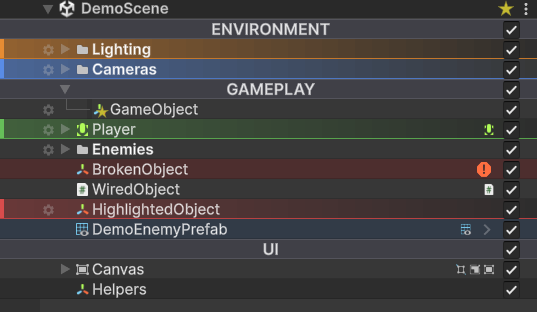
If none of this is happening, check that the active theme is selected: open Edit → Preferences → Hierarchy Inspector and pick a theme asset. A default one ships with the package.
Info
The first time you click the gear on a GameObject, Hierarchy Inspector adds a small HierarchyInspectorData component to it. This component is invisible in the Inspector by default, only present on objects you have actually styled, and automatically stripped from player builds (it carries Unity's DontSaveInBuild flag). Untouched objects stay clean; built objects ship clean.
Finding the controls
| What you want | Where to look |
|---|---|
| Switch themes, create a new theme, reset to defaults | Edit → Preferences → Hierarchy Inspector |
| Edit a theme's colors, sizes, and feature toggles | Select the theme asset; the Inspector is fully tabbed |
| Change one GameObject's color, icon, name, notes | Click the gear icon on the row in the Hierarchy |
| Mark a GameObject as a folder | Gear popup, then the Virtualized Folder button |
| Bookmark a GameObject | Gear popup, then the star button (☆ / ★) |
| Jump to a bookmark | Click the gold star button on the scene's header row in the Hierarchy |
| Copy/paste a row's styling | Ctrl+Shift+C to copy the selected row, Ctrl+Shift+V to paste |
Turning the overlay off
If you want to compare against Unity's stock hierarchy or temporarily disable everything, open the active theme asset and uncheck Overlay Enabled at the top. The custom rendering shuts off, all callbacks unsubscribe, and you see Unity's default hierarchy. Re-check it to bring everything back. No restart needed.