Indicators Tab
The Indicators tab controls the semantic flags drawn on rows: prefab tints, override dots, missing-script highlights, missing-reference indicators, and separator detection.
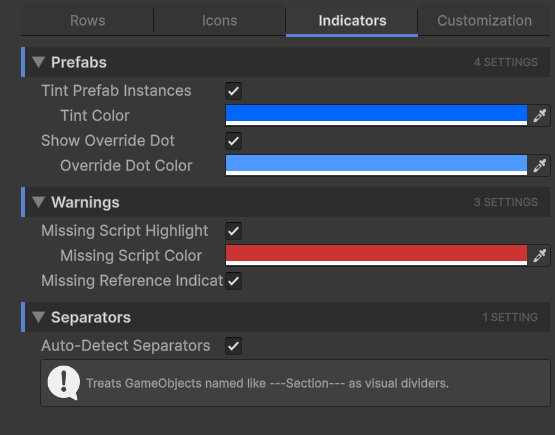
These are all visual cues to help you spot problem rows or special rows at a glance.
Prefabs
Two related features for prefab instances.
| Setting | Effect |
|---|---|
| Tint Prefab Instances | Auto-blend a tint into rows whose GameObject is a prefab instance. Spotting prefab instances vs. plain GameObjects across a deep hierarchy becomes a glance. |
| Tint Color | The color blended into prefab instance rows. Default is a soft Unity-blue. Only takes effect when Tint Prefab Instances is on. |
| Show Override Dot | Draws a small dot next to prefab instances that have unsaved overrides (a property different from the prefab source). Same idea as Unity's blue revert indicator in the Inspector, but visible from the Hierarchy. |
| Override Dot Color | The color of the override dot. Only takes effect when Show Override Dot is on. |
Warnings
Three related features that flag suspicious rows.
| Setting | Effect |
|---|---|
| Missing Script Highlight | Tints rows whose GameObject has a component slot with a missing script (the dreaded "Missing (Mono Script)" message). Makes the broken row stand out in red instead of looking normal. |
| Missing Script Color | The tint color. Default is a saturated red. Only takes effect when Missing Script Highlight is on. |
| Missing Reference Indicator | Shows a small indicator on rows whose components have any null serialized reference fields. Helpful for catching unwired references before play. |
Warning
Missing Reference Indicator only checks reference fields, not all fields. It looks at Object references, [SerializeReference] fields, and the like. Plain string/int/float fields are not validated.
Separators
A small organizational feature for keeping a long hierarchy readable.
| Setting | Effect |
|---|---|
| Auto-Detect Separators | Treats GameObjects whose name matches the pattern ---Section--- (or similar dash-wrapped patterns) as visual dividers. The row is rendered as a thick horizontal divider with the inner text as a section label. |
This is a community convention many Unity developers already use; Hierarchy Inspector just makes it look intentional instead of like a regular GameObject with an unusual name.