Customization Tab
The Customization tab controls user-driven coloring (the gear popup), color effects on rows that have a custom color, the optional active-toggle column, and animations.
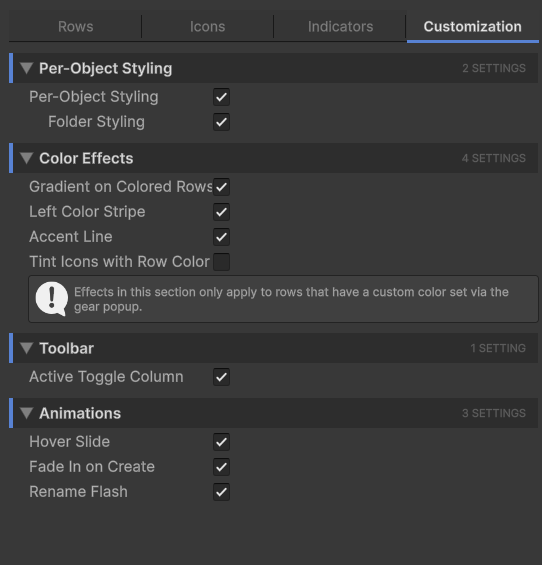
Per-object styling
This is the master switch for everything driven by the gear popup: color, icon, folder/bookmark flags, notes.
| Setting | Effect |
|---|---|
| Per-Object Styling | Master toggle. When off, the gear button doesn't show and per-object data isn't read. Hides all customization at once without losing it. |
| Folder Styling | When on, virtualization folders get extra visual treatment (folder-style row body, folder icon if no other icon is set). Only takes effect when Per-Object Styling is on. |
Color effects
These four toggles only affect rows that already have a custom color set via the gear popup. They control how that color renders.
| Setting | Effect |
|---|---|
| Gradient on Colored Rows | Fades the custom color left-to-right back to the row body color. The label area stays cleanly readable while the left edge is fully tinted. |
| Left Color Stripe | Draws a thin colored bar on the very left edge of colored rows. Subtle, leaves the row body untouched, useful when you want a hint of the color without flooding the row. |
| Accent Line | Draws a thin accent line at the bottom of colored rows. Like a paragraph rule under the row. Combine with Gradient or Stripe for layered emphasis. |
| Tint Icons with Row Color | Component icons in the gutter get tinted to match the row's custom color. Loud but striking; off by default. |
Info
Mix and match. All four effects can run at once. A common combination is Left Color Stripe + Tint Icons: a small color hint plus icon-tinting catches the eye without dominating the row.
Toolbar
A single setting controlling an extra column of toggles in the hierarchy.
| Setting | Effect |
|---|---|
| Active Toggle Column | Adds an eye/lock toggle column on the right side of every row, so you can flip a GameObject's activeSelf flag with one click without expanding the row's component icons or selecting it first. |
Animations
Three subtle animations to soften visual transitions.
| Setting | Effect |
|---|---|
| Hover Slide | When you hover a row, it shifts slightly to the right. Adds physicality to the hover state. |
| Fade In on Create | Newly-created GameObjects fade in over a fraction of a second instead of popping into existence. Helps you spot what just appeared in a busy hierarchy. |
| Rename Flash | A brief color flash highlights a row when its GameObject is renamed. Catches your eye on the row that changed. |
Info
Animations are very subtle by default. They are designed to stay below the threshold of distraction; you should notice them only when you're looking for them. If they bother you, turn them off here.